
Make your Back9Ops account
Make your account with an email and a password, confirm it from the email we send, then sign in. Do this first, before you set up your club.
Quick answer. On the sign-in page press Create Free Account, choose I'm an Organizer, type your email and a password, and press Create Account. Back9Ops emails you a link. Press it, then sign in.
Who can do this: anyone. You make your account first and your club second.
Before you start
Have the inbox you want to use open in another tab. Back9Ops sends one link there, and the account stays shut until you press it. This is also the inbox that password-reset links go to.
The steps
Open the Back9Ops sign-in page and press Create Free Account.
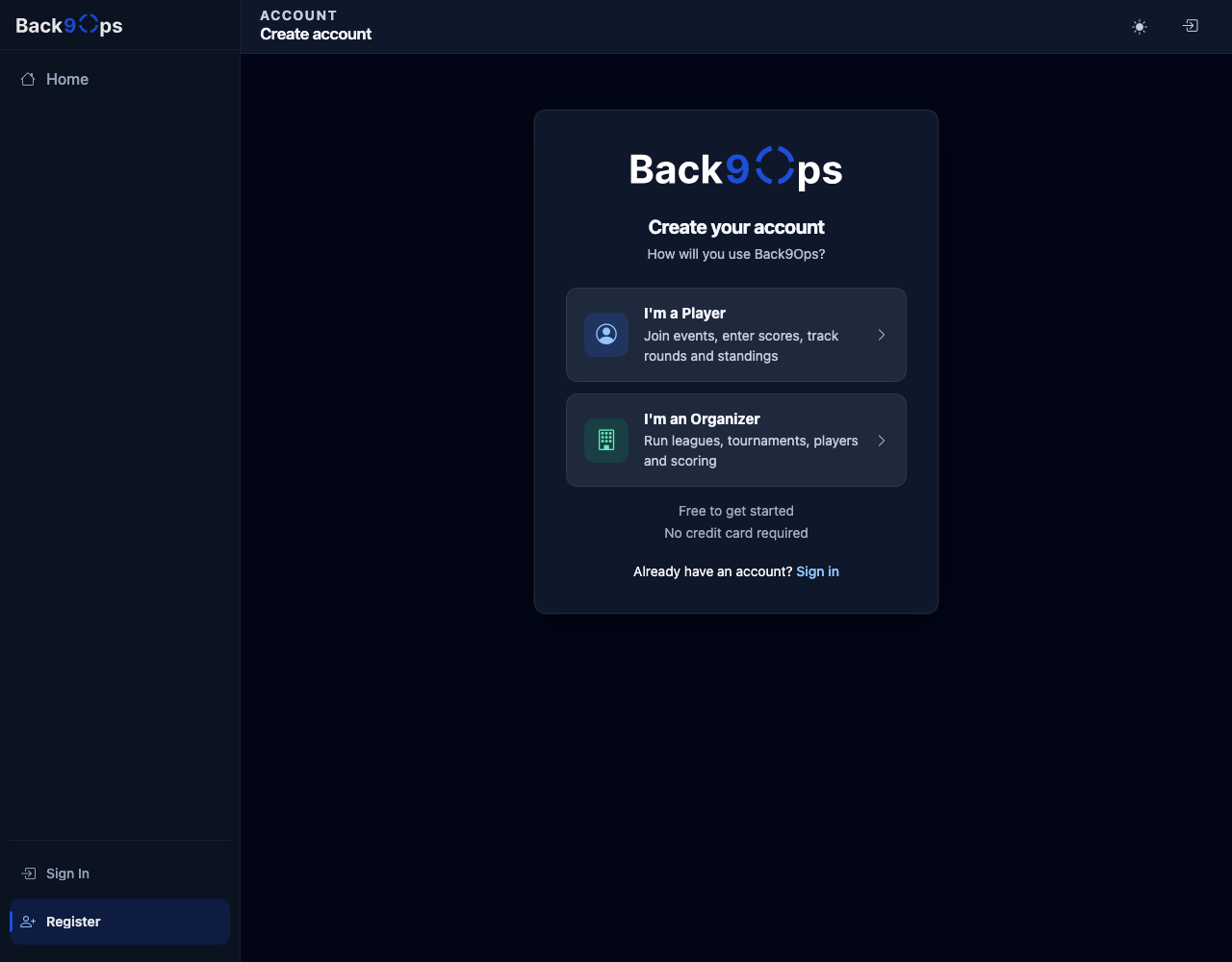
Under How will you use Back9Ops?, choose I'm an Organizer if you will run leagues, tournaments, players and scoring. Choose I'm a Player if you only want to join events and enter scores. This article follows the organizer path. The form after it is the same for both.
Type your Email address. Type a Password, then type it again in Confirm password. The password needs at least 6 characters, a capital letter, a number and a symbol such as ! ? or #.
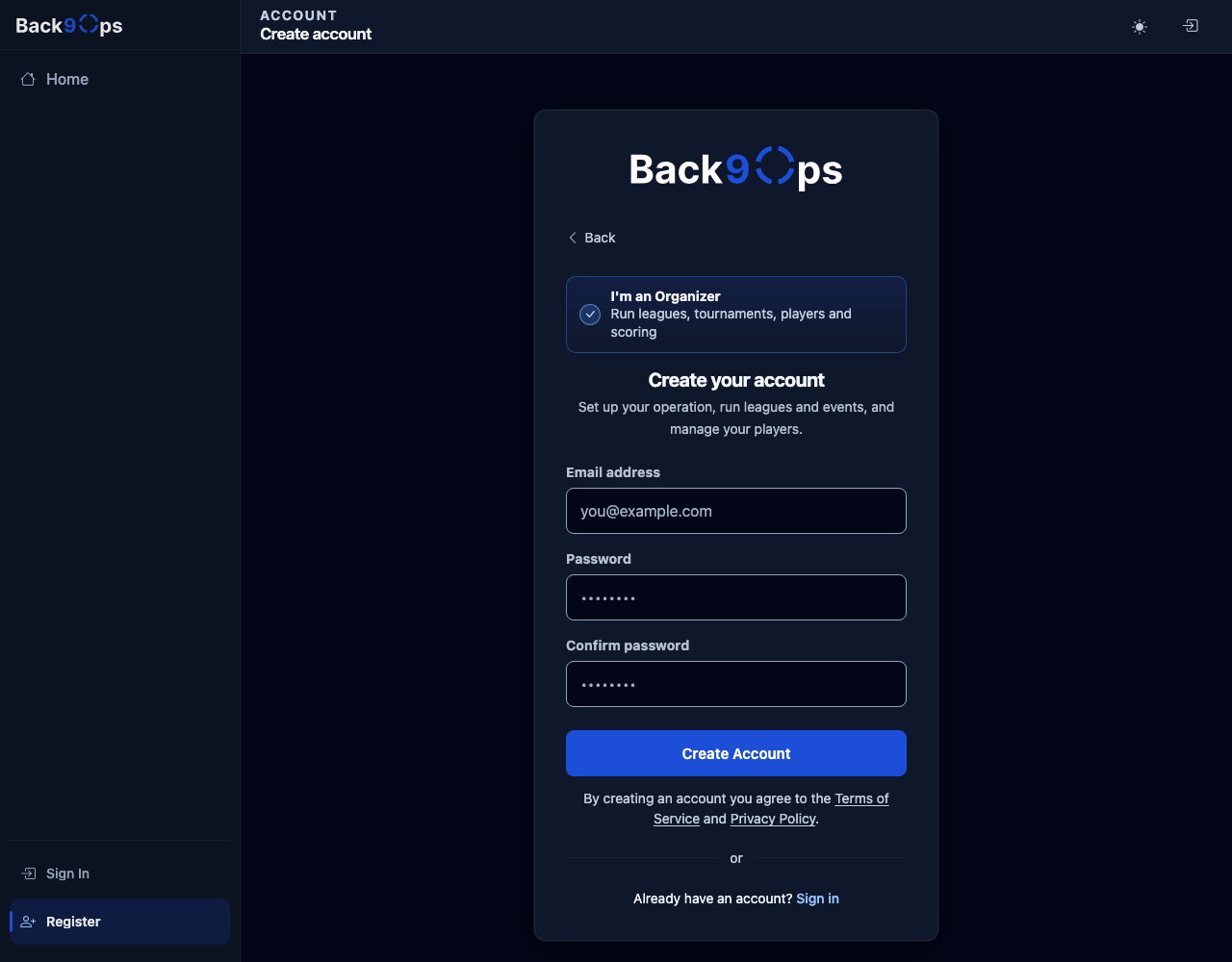
Press Create Account. Pressing it means you agree to the Terms of Service and the Privacy Policy, which are linked under the button.
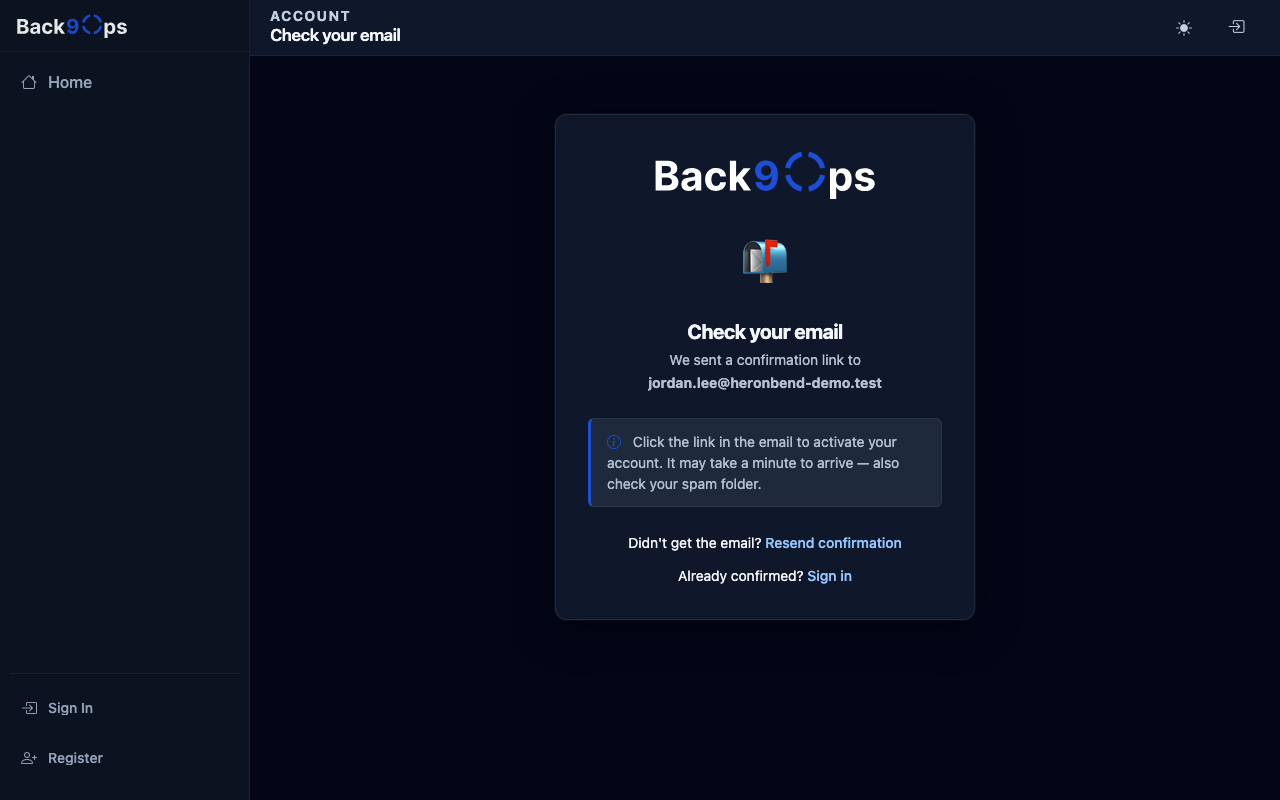
The page now says Check your email and We sent a confirmation link to your address. Open that email and press the Confirm Email button in it. It can take a little while to arrive.
A page says Email confirmed! and Your account is ready. Sign in to get started. Press Sign In. Signing in has the rest.
What you should see
The Email confirmed! page with a Sign In button. If you chose organizer and you have no club yet, your first sign-in opens Welcome to Back9Ops. That is the start of Set up your club.
If it goes wrong
- The email never comes. Wait a minute, then look in your spam folder. If it is still missing, press Resend confirmation on the Check your email page, type your email address, and press Send confirmation email. The sign-in page has a Resend confirmation email link that goes to the same place. Back9Ops sends at most 3 of these every 30 minutes, and the page says the links it already sent still work.
- The password is refused. Back9Ops says what is missing in plain words, for example "Add a symbol to your password, like !, ? or #." or "The Password must be at least 6 and at max 100 characters long." Fix it and press Create Account again.
- "The password and confirmation password do not match." Type the same password in both boxes.
- "Username … is already taken." The page names your address. That address already has an account. Go to Signing in. If you have forgotten the password, press Forgot password? there.
- The page says "Confirmation failed". Under it, "This confirmation link is invalid or has already been used." Back9Ops shows this when the link is out of date or has been changed on its way, for example cut short by an email program. Go back to the email and press its Confirm Email button rather than copying the address, or press Resend confirmation email (it is on that page and on the sign-in page) and use the new link. A link you have already pressed once usually still says Email confirmed!, so that page does not mean something went wrong.
- You sign in before confirming and it says the email or password is incorrect. An account that has not been confirmed gets the same message as a wrong password. Press the link in the confirmation email first.
Director's tip
Make your account the day before you need it, not at the course. The confirmation email can be slow, and a spam folder can hide it.
Related
Still stuck?
Email support@back9ops.com and tell us the address you used, what you pressed, and what you saw on the screen. Never send your password.
Still stuck?
Email support@back9ops.com and tell us what you were trying to do. It helps to include the event or league name and what kind of phone or computer you are on.
The latest version is always at https://app.back9ops.com/help/start-here/make-your-account