
Signing in, and what to do if you cannot
Sign in with your email and password. If it will not let you in, here is what each message means and how to get back in without waiting.
Quick answer. Type your Email address and Password, then press Sign In. If you have forgotten the password, press Forgot password? and Back9Ops emails you a link to choose a new one.
Who can do this: anyone with an account. If you have not made one yet, start with Make your Back9Ops account.
Before you start
Use the same email address you made the account with. An account is not open until you have pressed the link in its confirmation email.
The steps
Open the Back9Ops sign-in page.
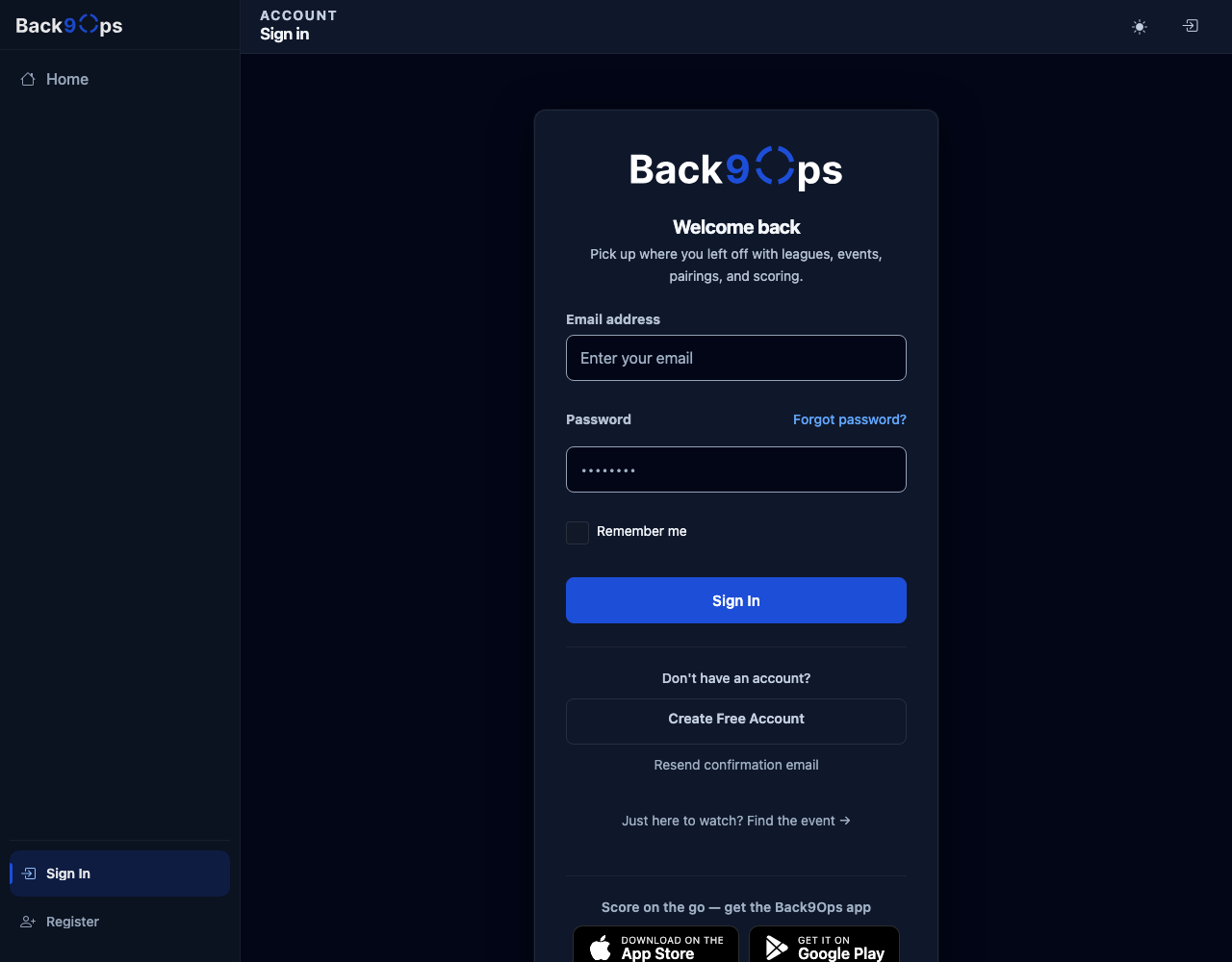
Type your Email address and your Password.
Press Sign In. A club Admin or Organizer lands on the Dashboard.
What you should see
The Dashboard. A new organizer who has not made a club yet lands on Welcome to Back9Ops instead, which is the start of Set up your club.
If it goes wrong
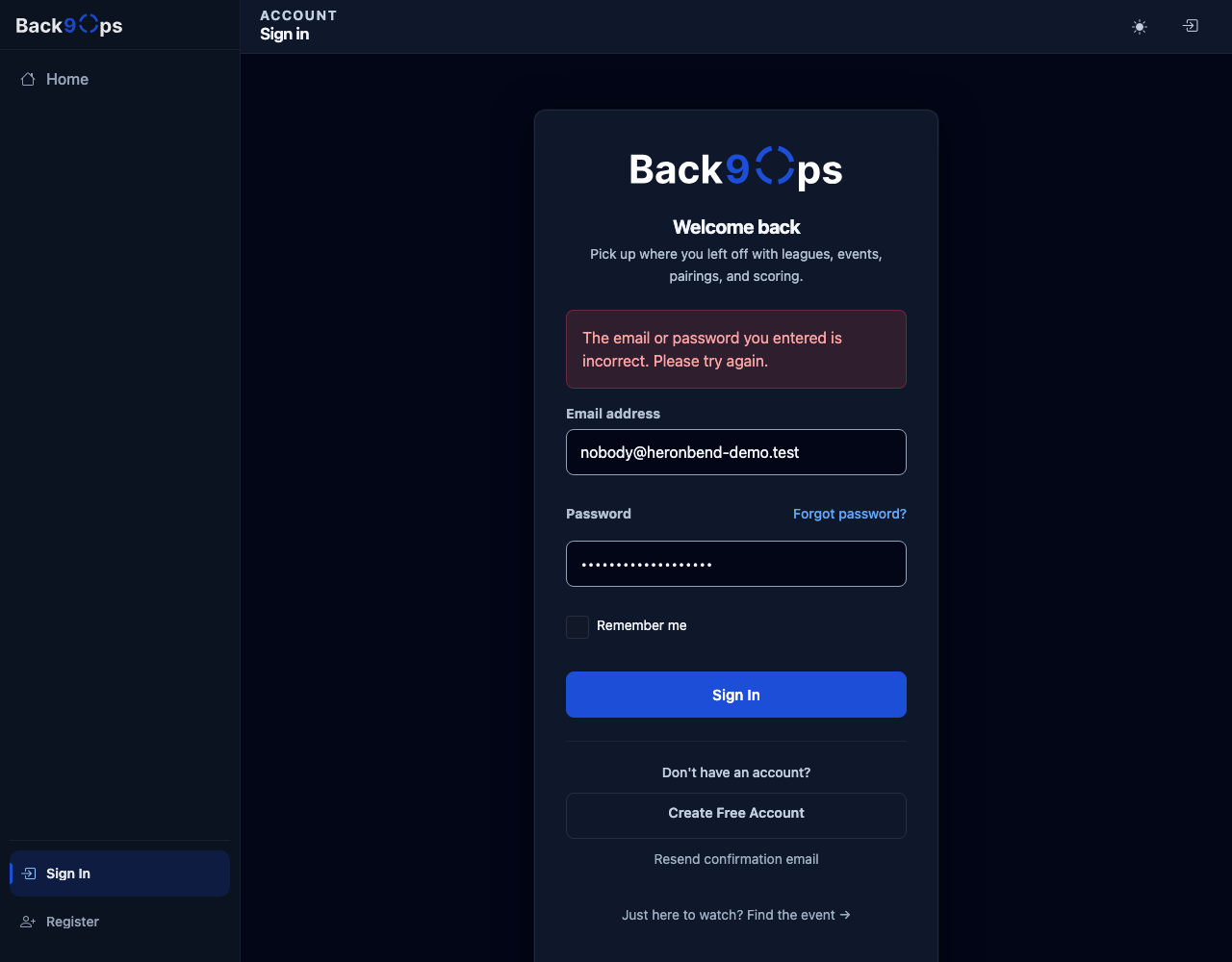
"The email or password you entered is incorrect. Please try again." Check the address and retype the password. This message is the same for a wrong password, a wrong address, and an account whose confirmation link was never pressed, so it does not tell you which one it is.
You have forgotten the password. Press Forgot password? under the password box, type your email, and press Reset password. The page says Check your email. Press the Reset Password button in that email. The page asks for your Email, a new Password and Confirm password. Fill in all three and press Reset. The page then says "Your password has been reset." and links you back to the sign-in page. If nothing arrives, give it a minute and look in your spam folder. Back9Ops limits how many of these it sends. If you have several of these emails, use the newest one: we saw the other links stop working once one had been used. Forgot your password, or the email never came has more.
The page says "Let's pause for a moment". Sign-in is paused after 5 wrong passwords in a row, to keep the account safe. It says nothing is wrong with your account and nothing has been lost. The pause lasts about 15 minutes and ends by itself. If you do not want to wait, press set a new one on that page, use the link in the email, and you can sign in straight away. Typing the right password during the pause does not get you in. Wait it out or reset it.
You have not confirmed your email yet. The wrong-password message appears. Press Resend confirmation email on the sign-in page. Make your Back9Ops account has the steps.
You are counter staff with no email address. You do not use this page. Your director adds you by name and gives you a 4-digit code. You use it on the counter device, which your director has turned into the front desk: it asks Who's working the counter?, you tap your name, and you type your code. See Add someone to your club.
You only came to watch. Press Just here to watch? Find the event → on the sign-in page, under Create Free Account and Resend confirmation email. You do not need an account.
Director's tip
Tick Remember me only on a phone or computer that is yours. Leave it unticked on a shared computer at the clubhouse.
Related
Still stuck?
Email support@back9ops.com and tell us the address you sign in with and the exact message on the screen. Never send your password.
Still stuck?
Email support@back9ops.com and tell us what you were trying to do. It helps to include the event or league name and what kind of phone or computer you are on.
The latest version is always at https://app.back9ops.com/help/start-here/signing-in