
Add someone to your club
Invite a person by email and pick their role. Someone who already has an account joins at once. Someone new gets a link that works for 7 days.
Quick answer. Press Settings, find Invite Someone to This Account, type their email address, choose their Role, and press Send Invite.
Who can do this: an Admin. An Organizer does not see the invite box. Who can do what in your club explains the three roles.
Before you start
Know which role the person needs. If you are not sure, read the table in Who can do what in your club. Use the email address they will sign in with.
The steps
Press Settings in the side menu. Your club's page opens.
Find the Club Staff box. It lists the people who are on your club now, each with a role. A device you have turned into the front desk is not a person, so it is not listed here.
Under that list, find Invite Someone to This Account. Type the person's email address in Email Address.
Choose a Role: Front Desk, Organizer or Admin. It starts on Organizer. A line under the box describes the role you have picked.
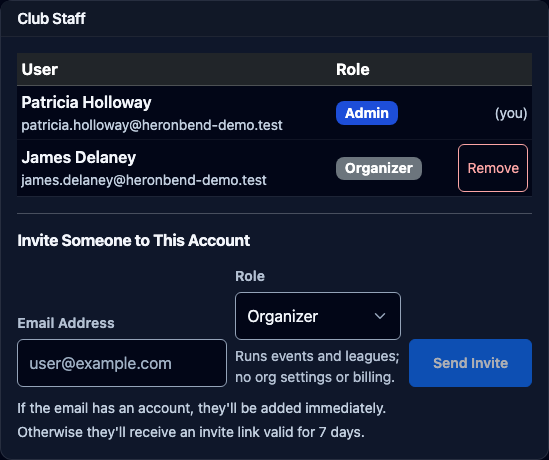
Press Send Invite. The button stays dimmed until you have typed an email address. A green box says Invitation sent!
What happens next depends on the person:
- They already have a Back9Ops account. They are added at once. They show up in the Club Staff list with their role, and there is nothing for them to do.
- They are new. Back9Ops emails them a link. It is valid for 7 days. Until they use it, they appear under Pending Invitations with the date it Expires.
If the person is new, tell them to open the email and press its Accept Invitation button. The page says You've been invited, with a note to sign in with the same email address the invitation was sent to. They press Create a Free Account. The page first asks How will you use Back9Ops? and they choose I'm an Organizer (for a co-organizer) or I'm a Player. The next page has an Email address box that starts empty, so they type the same address the invitation went to. They type a Password, type it again in Confirm password, and press Create Account. Then they press Confirm Email in the confirmation email and sign in with that same address. Their dashboard then shows your club's name in the left menu.
What you should see
A green Invitation sent! message. Then either the person's name in Club Staff, or their email under Pending Invitations.
If it goes wrong
- "That user is already a member of this account." They are already in the Club Staff list. Look there. If they need a different role, see the next point.
- "An active invitation for that email already exists." They already have a pending invitation. Find the email under Pending Invitations. Press Revoke to cancel it, then send a new one with the right role.
- You picked the wrong role. There is no change-role button. Press Remove beside the person in Club Staff, then invite them again with the right role. Remove works at once and does not ask first. It takes them off the club only, and their Back9Ops account stays. You cannot remove yourself. Your own row says (you).
- The link says "Invitation Unavailable". The page says "This invitation link has already been used, has expired, or does not exist." For a new person this is often normal. Pressing Confirm Email in the confirmation email is what uses the invitation up, so the invitation page can say this when they come back to it after signing in. Look in Club Staff, or ask them whether your club's name is in their left menu. If they are there, the link did its job. If they are not there and not under Pending Invitations either, send a new invitation.
- The new person does not see your club. The invitation belongs to one email address, and the invitation page asks them to sign in with the same one. If they made their account with a different address, send a new invitation to the address they actually use.
- The role in the pending list says "Staff". That is what a Front Desk invitation is called in that list. It is the same role as Front Desk in the role choice.
- The person works the counter and has no email address. Do not invite them. Use the Front Desk Crew box on the same page instead. Type their name and press Add to crew. The page shows their 4-digit code and says to write it down. If it is forgotten, press New code beside their name. The old code stops working. The code works on the counter device. At that device, an Admin opens the same Settings page, finds The front desk screen, presses Turn this device into the front desk, then Yes, make this the front desk. That signs the device out of the Admin's account. The counter staff then tap their name and type their code.
Director's tip
Invite people a few days before the event, not that morning. A new person has to make an account and confirm an email first, and that takes a few minutes they will not have at the first tee.
Related
Still stuck?
Email support@back9ops.com and tell us your club's name, the email address you invited, and the exact words on the screen.
Still stuck?
Email support@back9ops.com and tell us what you were trying to do. It helps to include the event or league name and what kind of phone or computer you are on.
The latest version is always at https://app.back9ops.com/help/your-club-and-your-people/add-someone-to-your-club