
Set up your club
Name your club, set its time zone, and get to the place where you add your first course. Do the time zone now. Every time in the app depends on it.
Quick answer. After you sign in as a new organizer, press Create Organization, type your club's name, and press Create Organization again. Then set the Time Zone on your club's page and press Save Changes.
Who can do this: a new organizer, once. The person who makes the club becomes its Admin.
Before you start
You need your account, signed in. Make your Back9Ops account has that. Have the club's name ready, as you want golfers to see it.
The steps
Sign in. A new organizer with no club sees Welcome to Back9Ops and Let's get your golf operation running. It lists four steps: Create Organization, Add Course, Import Players and Create First Event. This article is step 1. The next steps unlock one after another.
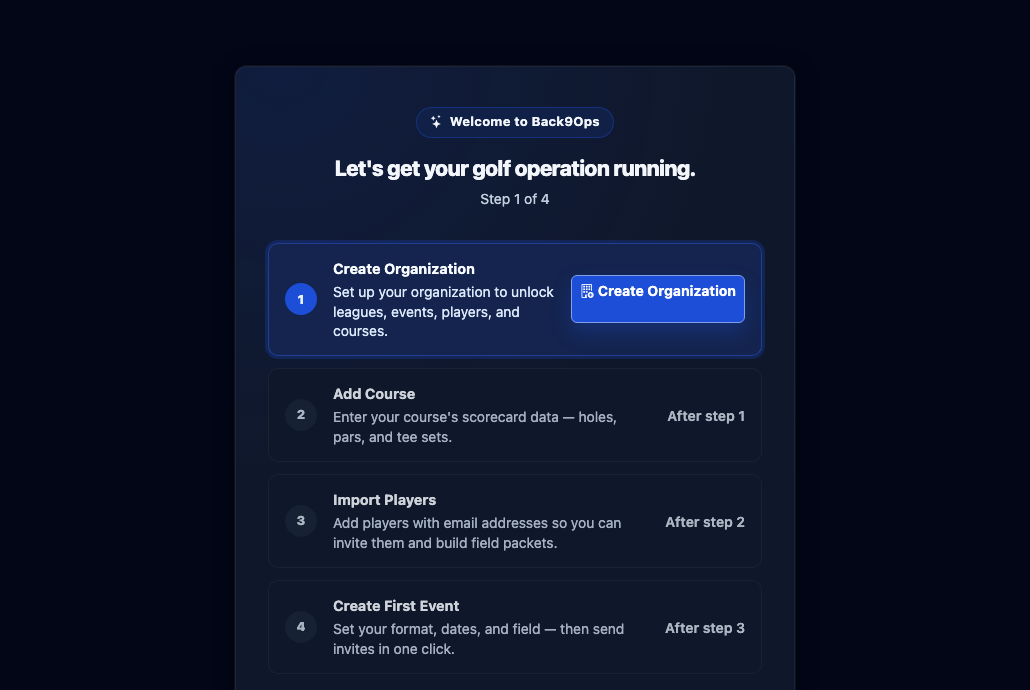
Press Create Organization.
Type your club's name in Organization name. Contact Email, Phone and Address are marked optional, so you can leave them empty and come back to them later.
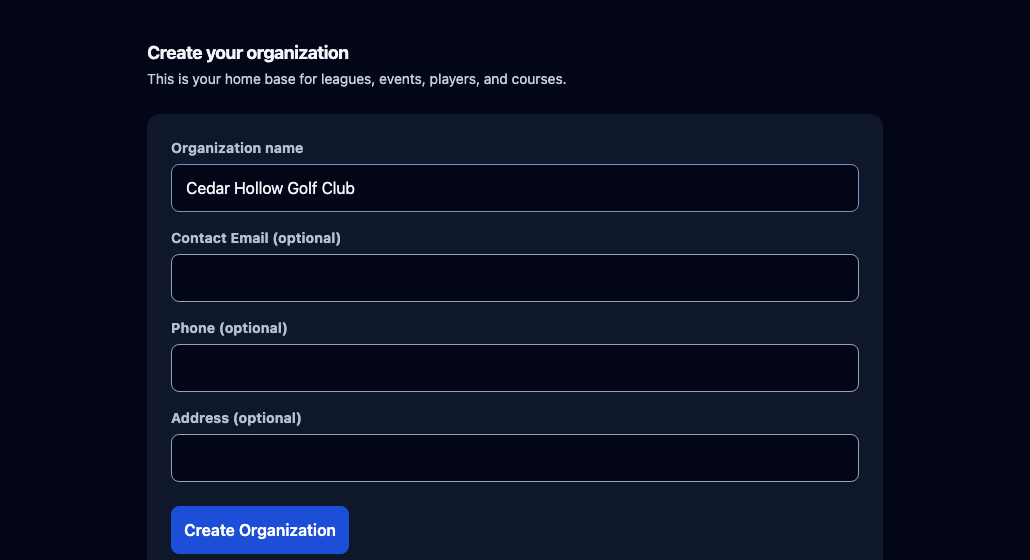
Press Create Organization.
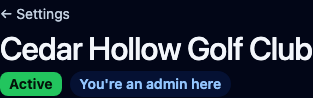
Your club's page opens. Under the club's name you see Active and You're an admin here.
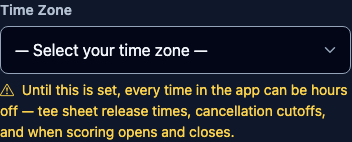
Find Time Zone in the Account Details box. It starts on — Select your time zone —, with a warning under it: "Until this is set, every time in the app can be hours off — tee sheet release times, cancellation cutoffs, and when scoring opens and closes." Choose the zone your club is in.
Press Save Changes. The button reads Saving... for a moment, then a green ✓ Saved shows beside it and stays there. To be sure, reload the page and check that your time zone is still showing in the box.
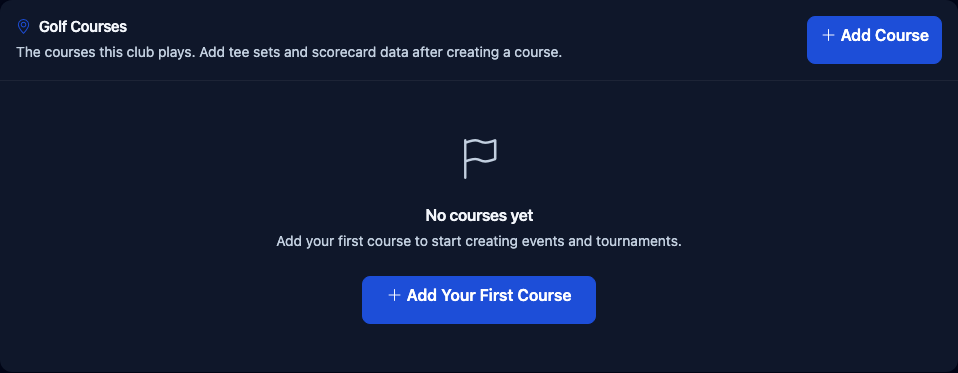
Look at the Golf Courses box. It sits at the top of the page, above Account Details. It says No courses yet and has an Add Your First Course button. That is where Your first event, start to finish picks up.
What you should see
Your club's name with Active and You're an admin here, a green ✓ Saved beside Save Changes, your time zone still showing after a reload, and Golf Courses with the Add Your First Course button.
If it goes wrong
- You do not see Welcome. Welcome is only for an organizer who has no club yet. If your account already belongs to a club, you land on the Dashboard and there is nothing to create. If you expected to start a new club and cannot, email us and say which address you signed in with.
- You never saw the green ✓ Saved, or the time zone shows empty after a reload. The save did not take. Choose it again, press Save Changes, wait for ✓ Saved, and reload once more.
- Times in the app are hours off. The time zone is empty or wrong. Set it as in step 6 and 7. That one box controls tee sheet release times, cancellation cutoffs, and when scoring opens and closes.
- You mistyped the club's name. The Account Details box does not change it. A note at the top of that box says the club's name, logo, tagline, contact info and public page are all set up in one place, and links to Club Page. Use that link.
- Someone else needs to run things with you. Add someone to your club has the steps. Only an Admin can do it.
Director's tip
Pick the time zone before you do anything else on the page. It is the one setting that quietly makes everything else look wrong when it is empty.
Related
- Make your Back9Ops account
- Your first event, start to finish
- Who can do what in your club
- Add someone to your club
Still stuck?
Email support@back9ops.com and tell us your club's name, what you pressed, and what you saw on the screen.
Still stuck?
Email support@back9ops.com and tell us what you were trying to do. It helps to include the event or league name and what kind of phone or computer you are on.
The latest version is always at https://app.back9ops.com/help/start-here/set-up-your-club