
Your first event, start to finish
The whole path from a new account to scores going in, in order. Each step is one short job, and the longer articles take over where you need more.
Quick answer. Make your account, make your club, set its time zone, add your course and its tees, add your players, create the event, put players in groups, open registration, start the event, then open scoring. This page is the map. Each step names the longer article, or says what you will see.
Who can do this: an Admin makes the club and sets its time zone. After that, an Admin or an Organizer can create the event and run it. Who can do what in your club has the full list.
Before you start
Have your course's printed scorecard in front of you. You need the pars, the stroke index for each hole, the yards, and the rating and slope for each tee.
The steps
Part 1. Your account and your club
- Make your Back9Ops account, and confirm it from the email.
- Set up your club: name it, then set its Time Zone and press Save Changes.
Part 2. Your course
- On your club's page, find Golf Courses and press Add Your First Course. Or press Courses in the side menu and add one there. The page offers Find Your Golf Course, a search of a course library. This article follows the other way, the link directly under that search box that says Skip — enter course details manually.
- Fill in the Course Name. Location / City, Number of Holes, Website, Phone and Description are optional. Press Create Course. The course opens with a box called Tee Sets that says "No tee sets added yet."
- Press + Add Tee Set. Type a Tee Name such as White, then the Par, Course Rating and Slope Rating from the scorecard. Color and Gender are there too. Press Add Tee Set.
- Press Edit Scorecard. A new scorecard starts with Par 4, a stroke index of 1 to 18 in order, and 0 yards on every hole. Type the real Par, S.I. and Yards for each hole, then press Save Scorecard. A green Saved! appears beside the button.
Part 3. Your players
- Press Players in the side menu, then Add Player. First Name and Last Name are required. Press Add Player at the bottom of the form. If you do not know a Handicap Index, leave it empty.
Part 4. The event
Press Events, then Create Event. The list down the left shows four steps: Event Details, Course & Dates, Registration and Review. The last page is headed Review & Launch. Type the Event Name and keep Stroke Play unless you want another format. Press Continue at each step.
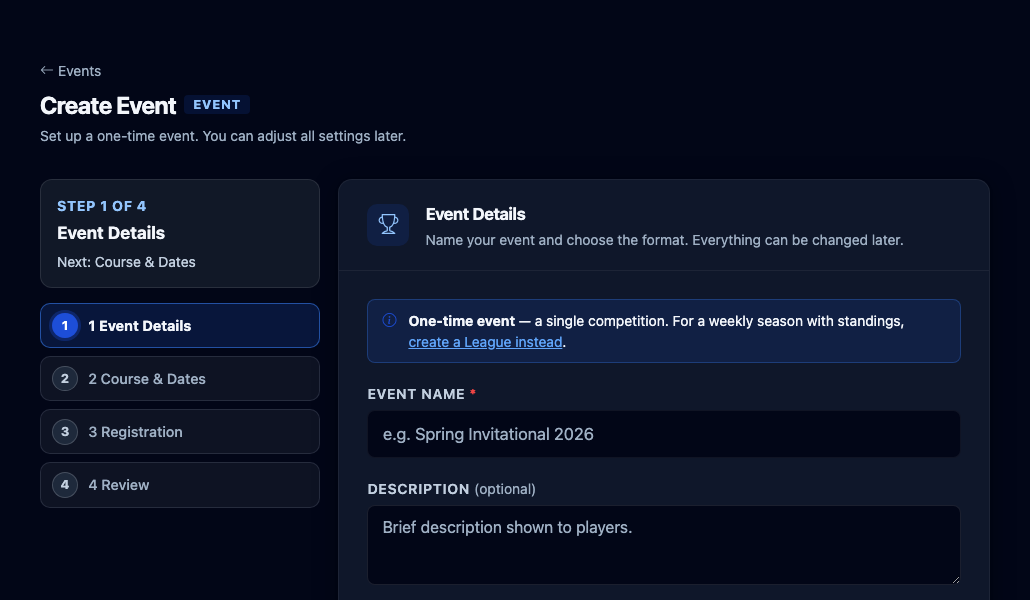
On Course & Dates, choose your Course and the Start Date. When you pick the course, a Tee Set row appears under it. Pick the tees most players will use. If the course has only one tee set, Back9Ops picks it for you. If you skip it you can still finish, but you must choose one before the event can start. The Registration step is fine on its defaults for a first event.
On Review & Launch, check the summary and press Create Event. The event opens as a Draft. Players cannot see a Draft.
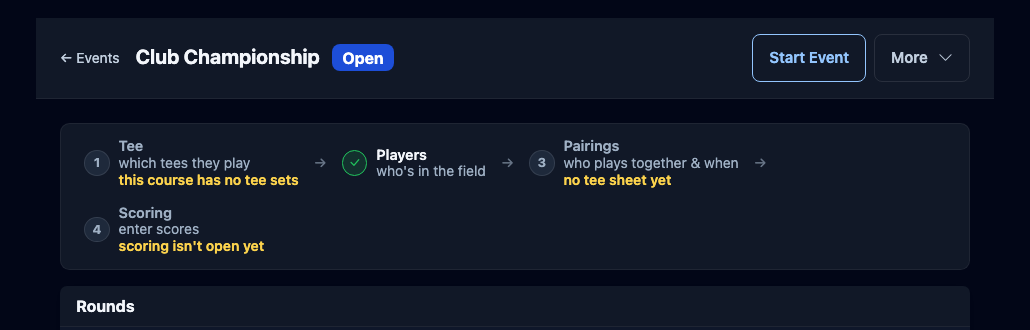
The four-step strip across the top of the event page is your checklist: Tee, Players, Pairings, Scoring. A finished step shows a green tick. A step still to do shows its number and a yellow note, such as "scoring isn't open yet". Press Tee, Players or Pairings to go to where you do it. If your course has only one tee set, Tee already has its tick, because Back9Ops picked that set for you.
Players. Press Players in the strip, or Manage Field. Press + Add beside each player under Add from Roster. The box Email them that they're registered starts unticked. Leave it that way for a practice run.
Pairings. Press Pairings in the strip. Choose Option A — Auto-Group, check the Group size, Start hole, First tee time and Interval (min), and press Generate Groups. Each group shows its tee time. Set Tee Times changes them. Pressing Generate Groups again replaces the groups for that round.
Back on the event page, press Open Registration. The page says "Event status updated to Open." This also emails everyone already in the field who has an email address, with the subject "Registration is open" and the event's name. The box from step 12 does not stop it. For a practice run, use addresses that are yours, or leave this step for an event with no players in it. Open sign-ups and share the link has the details.
Press Start Event. The page says "Event status updated to Active." and "Event is live — players can see it now." If the event is dated for another day, the page asks first and offers Never mind or Mark it live.
In the Rounds box, press the round's Scoring Closed · tap to open button. It changes to Scoring Open · tap to close. Starting the event does not open scoring. This step does.
Press Enter Scores. The scoring page shows one row per player and a pad of number buttons, 1 to 9 and 10+.
What you should see
All four steps in the strip showing a green tick, the round saying Scoring Open · tap to close, and a scoring page with your players and the number pad.
If it goes wrong
- A step in the strip has no green tick. Read the Before you start box on the event page. It lists what is missing. For example, "Players registered (0)" has a red Required label, the words "Add at least one player to the field.", and a Fix this link that takes you to the right page. For the tees the link says Choose a tee set.
- The wizard says "No tee set picked yet." You can still create the event, but you must pick a tee set before it can start. Press the Tee step in the strip to pick one.
- The wizard says "This course has no tee sets yet." Go back to your course and add one (step 5). Then choose it in the event.
- You pressed Start Event and a box asks "Mark it live now anyway?" The event is dated for another day. Press Mark it live to go ahead, or Never mind to wait. The box also says that scoring stays closed until you open it on the round.
- Players say they cannot enter a score. Look at the round. If it says Scoring Closed · tap to open, scoring is not open. Press it.
- Golfers got a "Registration is open" email you did not mean to send. Step 14 sends it to everyone in the field. It cannot be called back, so tell them it was a test.
- You started the event too soon. Right after you start it, the message "Event is live — players can see it now." has a Back to Draft button. It hides the event again and keeps any scores.
- You pressed Generate Groups and the groups look wrong. The page says it replaces any existing pairings for the round. Change the settings and press it again.
Director's tip
Do a full practice run first with players you made up, a few days before the real day. Add them, make groups, open scoring and enter a few scores. It is the quickest way to find out which step slows you down.
Related
Still stuck?
Email support@back9ops.com and tell us the event's name, which step you were on, and what the screen said.
Still stuck?
Email support@back9ops.com and tell us what you were trying to do. It helps to include the event or league name and what kind of phone or computer you are on.
The latest version is always at https://app.back9ops.com/help/start-here/your-first-event